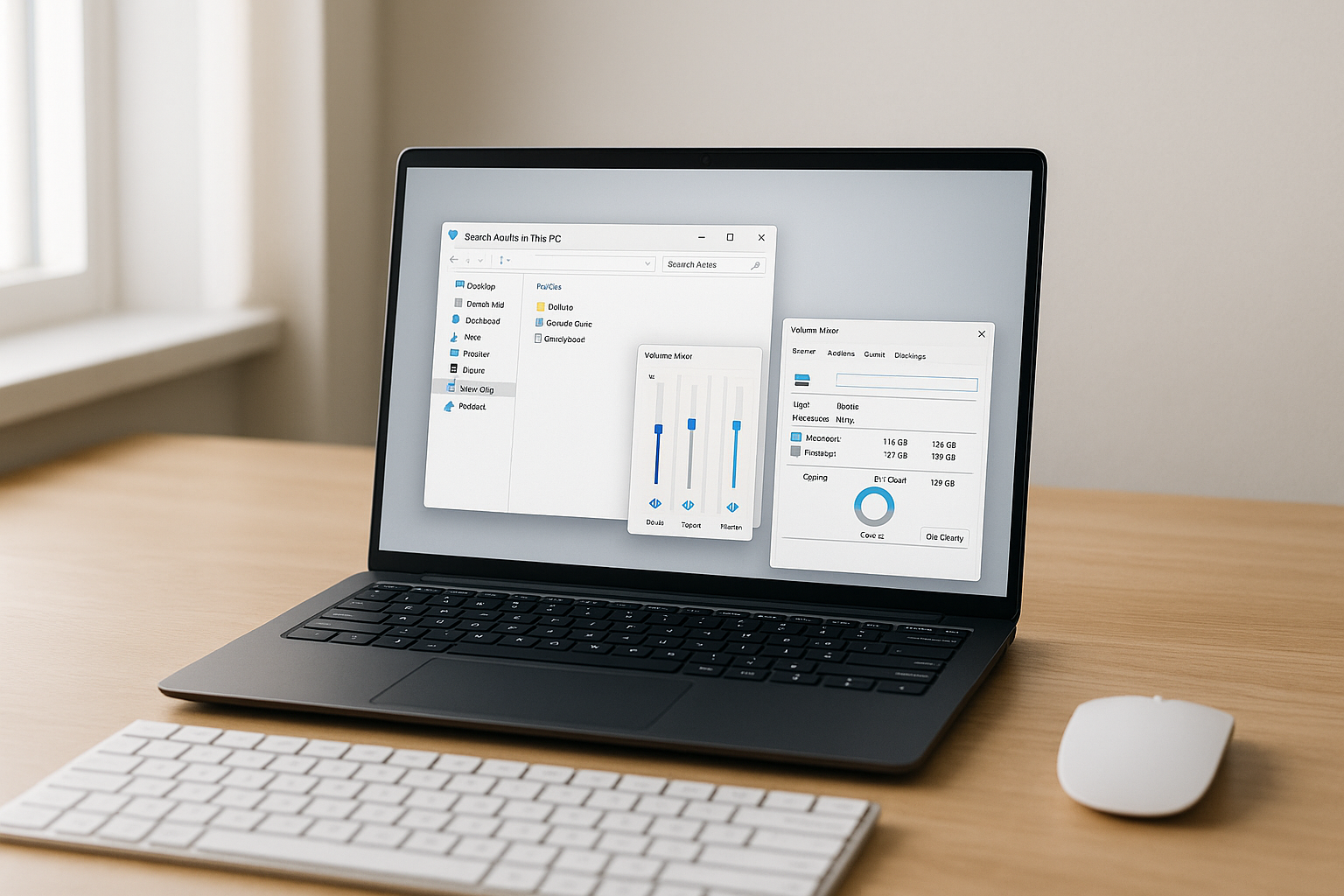
5 Free Windows Apps You’ll Wish You Installed Earlier
Skip the bloated suites and grab five small free Windows apps that quietly fix search, screenshots, audio control, previews and disk space headaches.
Windows 10 and Windows 11 are packed with features, but a lot of the built‑in tools range from "fine" to "why is this so clunky." You feel it every time search drags, screenshots misbehave, or your SSD mysteriously fills up.
The fix usually isn’t some giant all‑in‑one suite. It’s a handful of tiny, focused, free Windows apps that do one job properly and then get out of your way. The kind of utilities power users swear by and most people have never even heard of.
The best free Windows apps are the ones you forget you installed, because suddenly everything just feels faster and less annoying.
Everything: search your PC in real time
If you’ve ever typed a file name into Windows Search and then stared at a spinning progress bar, you need Everything. It’s a free search utility from Voidtools that indexes your drives and shows results as you type, basically at the speed of your keyboard.
Everything hooks directly into the NTFS file system index, which means it can catalogue a 1 TB SSD in seconds rather than minutes. In day‑to‑day use, that translates to this: you type three or four characters, and the file or folder you want just appears. No waiting, no "working on it" messages from Windows.
Practical examples. You can:
- Instantly find that massive .ISO you forgot about and delete it to free 5 GB.
- Jump straight into a project folder by typing the client name instead of digging through nested directories.
- Filter by extension to see every .PSD, .PDF, or .MKV on a drive in one view.
- Build saved searches for things like "files bigger than 500 MB" and run them weekly.
- Point it at external drives when you are cleaning up old backups.
Spend 3 minutes in the options and you can assign a global hotkey, trim the index to only the drives you care about, and hide system paths so you do not nuke something Windows actually needs. If you only install one tool from this list of free Windows apps, make it Everything. Grab it from the official site at voidtools.com.
ShareX: screen capture for power users
Windows has Snipping Tool and Xbox Game Bar. They are fine for the occasional screenshot, but if your job involves documenting bugs, writing guides, or sending visual feedback all day, they get annoying fast. ShareX fixes that.
ShareX is a free, open‑source Swiss‑army knife for screenshots and screen recording. You can capture a region, window, monitor, scrolling page, or even just a custom polygon. Hit a hotkey, drag a box, and an editor pops up with arrows, blur, text, and all the markup options you actually need.
The fun part is what happens after capture. You can chain actions: add a drop shadow, copy to clipboard, save to a specific folder, and upload to Imgur or your self‑hosted server, automatically. Once you set up a workflow, every screenshot follows the same rules and you do not waste time dragging files around.
If you stream or create tutorials, it slots nicely alongside tools like the ones we covered in our roundup of extensions that make Twitch streaming less painful. Same idea: offload the fiddly work so your brain can focus on content instead of micro‑tasks.
The interface is dense, especially the first time you open the settings panel, but you do not need to touch 90% of it. Set two or three hotkeys for your most common captures and ignore the rest until you are ready to go deeper.
EarTrumpet: finally fix Windows volume control
Windows 11’s volume mixer is better than the one we had in Windows 7, but it is still weirdly awkward for something you touch every single day. You get tiny sliders buried a couple of clicks deep, and switching output devices mid‑meeting is way more drama than it should be.
EarTrumpet is a tiny free app that gives you a clean, per‑app volume mixer right in the system tray. Click it and you see individual sliders for Chrome, Spotify, your video call, your game, your media player, and so on. Drag one up, drag one down, done. No hunting through Windows settings.
Two small quality‑of‑life upgrades I’ve come to rely on:
- Right‑click an app in EarTrumpet to move it to a different audio output, like sending Spotify to your speakers and Teams to a headset.
- Use the mouse wheel on the tray icon to adjust the master volume in tiny, smooth increments.
If you already experimented with sound tweaks using tools like the one we covered in our guide to boosting Windows audio volume, EarTrumpet is a perfect companion. It does not try to "enhance" your sound, it just makes control sane.
The app is published in the Microsoft Store, plays nicely with Windows audio APIs, and in my testing on Windows 11 23H2 it has been completely stable.

QuickLook: instant previews in File Explorer
If you have ever used macOS, you probably miss one feature on Windows more than anything: tap Space on a file and see a quick preview, no app launch required. QuickLook brings that exact behavior to Windows 10 and Windows 11.
Install it, run it, and from then on you can highlight almost any file in File Explorer and hit Space to see a big, clean preview. Images, PDFs, text files, videos, even PSDs and Office docs if you have the right components installed.
This sounds trivial until you work with it for a week. Suddenly you stop opening and closing apps just to confirm file contents. Skimming a folder of client assets or photos becomes a fast rhythm: arrow keys, space, escape, repeat.
There are plugins for extra formats if you need them, and you can keep QuickLook running at startup so it is always ready in the background. It is a perfect example of a free Windows app that should probably be baked into the OS, but isn’t.
WizTree: stop guessing what’s filling your drive
You know the feeling: Windows pops up a "low disk space" warning on your C: drive, and you genuinely have no idea where the gigabytes went. Digging through folders manually is a waste of time. WizTree shows you, instantly, what is eating your SSD.
WizTree scans your drive and builds a visual map of which folders and files are taking the most space. It is similar to tools like WinDirStat, but faster, because it also reads the Master File Table on NTFS volumes instead of crawling every directory slowly.
For real‑world use, that means you can point it at your 512 GB system drive and get usable results in under ten seconds. You then get a sorted list of the biggest folders and files, plus a colored treemap that makes obvious what should probably be archived or deleted.
If you are the person in your family who "fixes the computers", this is one of those free Windows utilities you can throw on a USB stick and use during every cleanup visit. Combine it with backup tools or virtual drive managers like the ones we talked about in our PowerISO guide for Windows users and you will never again guess which folder is safe to prune.
How these free Windows apps fit into your day
None of these tools are glamorous. They are not AI copilots or full IDEs. But they shave seconds off tasks you repeat hundreds of times a week, and that compounds fast.
Here is a quick comparison so you can see where each one earns its place:
| Tool | Main job | What it replaces | Install size | Best for |
|---|---|---|---|---|
| Everything | Instant file search | Windows Search | ~5 MB | Anyone with big drives |
| ShareX | Screenshots & recording | Snipping Tool / Game Bar | ~30 MB | Remote workers, creators |
| EarTrumpet | Per‑app volume | Windows volume mixer | ~10 MB | People on calls all day |
| QuickLook | File previews | Opening apps just to peek | ~80 MB | Anyone handling lots of files |
| WizTree | Disk space mapping | Manual folder hunting | ~5 MB | Users on small SSDs |
If you already have a stack of utilities for timers, shutdown scheduling, and workflow automation, these fit right in. For example, a combo of WizTree, Everything, and a simple scheduler like the one in our shutdown timer walkthrough lets you queue up big cleanup jobs, then walk away and let the PC finish on its own.
To avoid the usual "install, forget, never use" problem, tweak a few things on day one:
- Give Everything, ShareX, and QuickLook global hotkeys you will actually remember, then practice them for a day.
- Pin EarTrumpet to your taskbar and unpin the default volume icon so you stop opening the wrong mixer.
- Run WizTree once a month, not once a year, so clutter never becomes an emergency.
- Export ShareX settings after you dial them in, so you can sync them to another PC later.
- Keep an "Admin Tools" folder in your Start menu or on your desktop with shortcuts to all five.
If you run a small business or manage a team, these are the type of low‑friction tools that quietly raise the floor on everyone’s productivity. Paired with more traditional picks like the ones in our list of Windows apps every office should install, they help your machines feel fast and predictable for years instead of months.
None of this is officially required, of course. Windows 11 runs perfectly fine with just stock apps, as Microsoft’s own overview at microsoft.com/windows makes clear. But "fine" is not what you are aiming for if you spend eight hours a day staring at a monitor.
Frequently Asked Questions
Are these free Windows apps safe to install?
Yes, they are widely used and have been around for years, but always download from the official sites or the Microsoft Store, not random mirrors.
Will these tools slow down my older laptop?
No, they are all lightweight and sit idle most of the time; on a half‑decent machine you will not notice any performance impact.
Do they work on both Windows 10 and Windows 11?
Everything, ShareX, EarTrumpet, QuickLook, and WizTree all work on current builds of Windows 10 and Windows 11 without any weird compatibility hacks.
Can I use them without admin rights at work?
ShareX, Everything, and WizTree can run as portable apps in many cases, but if your company locks down installs, you will need your IT team’s blessing.
What if I end up not liking one of them?
Just uninstall it from Settings → Apps like any other program; none of these tools deeply hook into the system, so removal is quick and clean.

Written by
David ChenAI Tools Researcher
David is an AI tools researcher who covers the latest in artificial intelligence, machine learning applications, and emerging AI technologies. He combines a technical understanding of AI systems with practical insights on how to use them effectively. His reviews help readers cut through the hype and find AI tools that deliver real value.
Keep reading
You might also like
 Windows Software
PC Chrono Download: Essential Guide for Windows Users
PC Chrono download for Windows is an essential tool for anyone needing a reliable stopwatch, timer, and clock application. This versatile program not only
 Windows Software
Keyboard Remapper: Ultimate Download Guide for Windows
Keyboard Remapper is an essential tool for Windows users looking to customize their keyboard functionalities. This powerful program allows you to reassign
 Windows Software
PUBG Lite Download: Ultimate Step-by-Step Guide for 2024
Quick Summary: Get PUBG Lite easily with our comprehensive guide. Follow these simple steps to enjoy your favorite game on any device. Learn about system