Malicious Chrome Extensions: How To Stop Data Theft
Protect your data from malicious Chrome extensions with practical checks, safer alternatives, and a 20‑minute audit that locks down your browser.
You probably installed your last Chrome extension without thinking. A quick search, one click on "Add to Chrome", done. That tiny icon appears, and you move on with your life.
The problem is a lot of those tiny icons want your data way more than they want to help you. Reports of dozens of malicious Chrome extensions stealing browsing data and creating backdoors are not rare accidents, they are the cost of treating extensions like free candy.
Malicious Chrome extensions are often just normal-looking tools hiding full browser spyware behind a cute icon.
What “malicious Chrome extension” actually means
Let’s strip the drama out of the headline for a second. A browser extension is just a small app that runs inside Chrome. It can see and change what you see in the browser, which is powerful and very easy to abuse. The basic extension model is not evil, but it is extremely permissive.
Malicious Chrome extensions usually do one or more of these things once installed:
- Snoop on your browsing by reading every URL you visit, then sending that data to a remote server for profiling or resale.
- Inject extra code into pages, which can add hidden ads, fake login forms, or scripts that hijack your clicks.
- Steal account data by watching what you type into forms on banking sites, webmail, social networks, or admin panels.
- Open a backdoor that lets an attacker silently run more code in your browser later, long after the extension is installed.
- Change settings like your search engine, home page, or new tab page to spammy sites, then make it hard to switch back.
The scarier ones abuse wide permissions like "Read and change all your data on all websites". That sentence is exactly as broad as it sounds. If an extension has it, it can theoretically see every page you load, including private dashboards, internal tools, and online banking.
This is why malicious Chrome extensions are such a big deal for businesses too. One sketchy “coupon finder” on a sales rep’s laptop can leak CRM URLs, support dashboards, or staging environments that were never meant to leave the company network.
The red flags most people miss on the Chrome Web Store
The Chrome Web Store is better policed than it used to be, but it is not a security guarantee. Malicious Chrome extensions routinely get in, rack up tens of thousands of users, then get pulled only after someone complains.
Before you hit install on anything from the Chrome Web Store, slow down for 30 seconds and check a few things.
1. The permissions prompt
Chrome shows you a little dialog before installation that lists what the extension can access. Treat this like a contract. If a simple tab organizer wants access to "Read and change all your data on all websites", that is a hard no. A password manager asking for that permission makes sense. A color picker does not.
2. The developer name and website
Click the developer name on the store listing. Is it a real company with a website, or "Free Tools Inc" with no contact info at all? A lot of malicious Chrome extensions use throwaway publisher accounts with generic names and zero reputation outside the store.
3. Reviews that feel off
Legit extensions have a mix of praise and complaints. Fake or shady ones often have a wall of 5‑star reviews that all sound eerily similar, dropped on the same few days. One trick is to sort reviews by “Most recent” and actually read the 1‑ and 2‑star comments.
4. Install counts that don’t line up
If an extension launched three months ago and claims 2,000,000+ users with almost no reviews, something is weird. On Chrome, real growth looks messy: reviews over years, not an instant spike overnight.
5. The home page and privacy policy
Click through to the extension’s website. A one‑page site with broken English, generic stock photos, and no privacy policy should make you bail. Even free extensions should be able to say in plain language what they collect and why.
Also remember Google’s own UI changes, like when Chrome 76 started hiding “www” and “https” in the address bar. If that topic is new to you, it is worth skimming our piece on Chrome’s simplified URL display because it shows how attackers play with trust signals in the browser.
Locking down the extensions you already have
If you are like most people I work with, you have 20 to 40 Chrome extensions installed, about 5 you use daily, and another 15 you forgot existed. That dead weight is where malicious Chrome extensions love to hide.
Spend 20 minutes doing this on your main browser profile:
Step 1: Open your extensions page
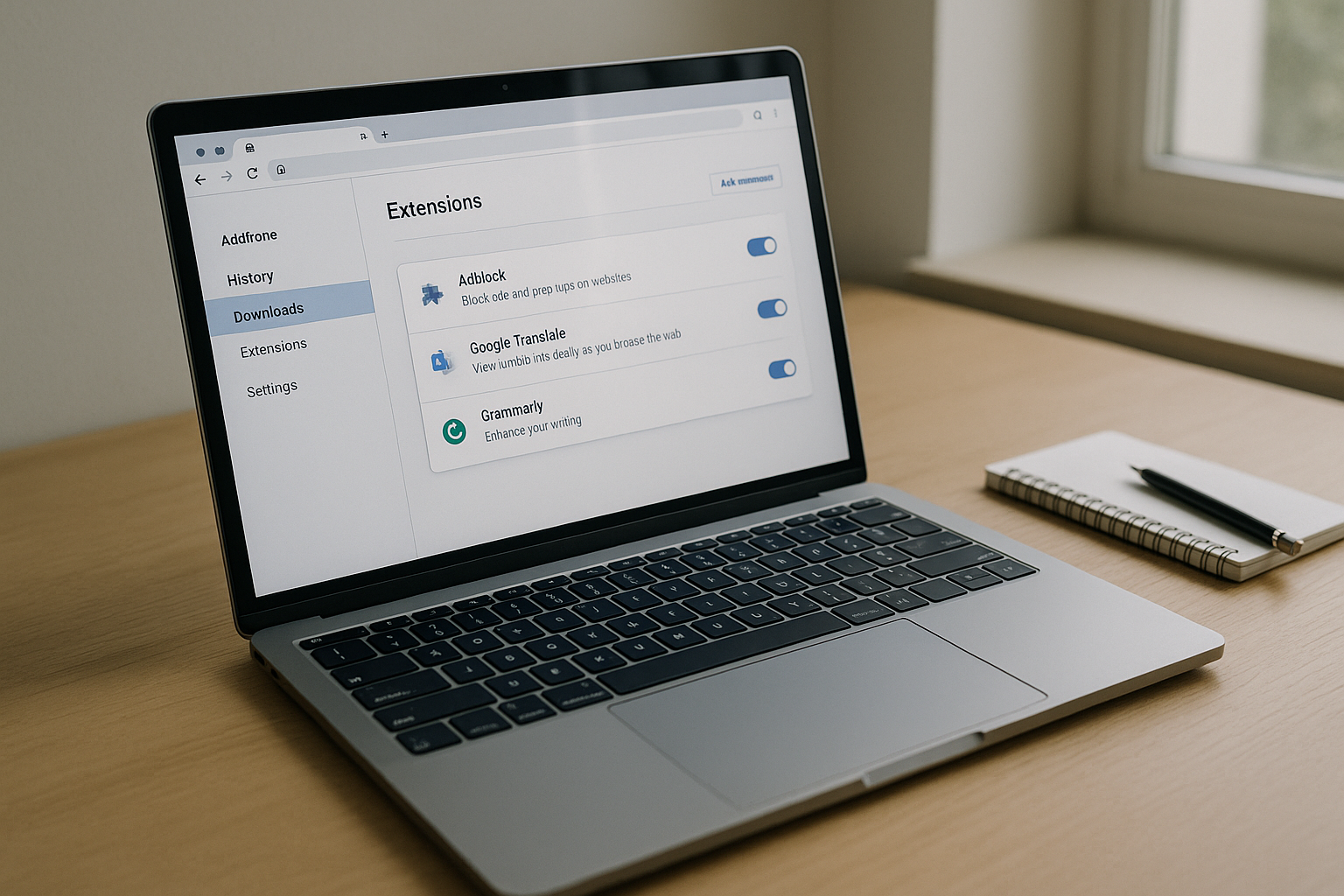
Type chrome://extensions into the address bar. You will see everything that is installed, including the stuff pinned and unpinned from the toolbar.
Step 2: Remove anything you do not remember installing
If you do not recognize an extension name immediately, click “Remove”. You can always add it back later. If you want a safety net first, follow our guide on exporting your installed Chrome extensions so you have a backup list.
Step 3: Limit “site access” for the rest
For each extension you keep, click “Details”. Under “Site access”, switch from “On all sites” to “On specific sites” or “On click” wherever you can. Your ad blocker probably needs global access. Your YouTube helper does not need access to your online banking.
Step 4: Nuke sideloaded junk
If you have ever installed a CRX file directly, or dragged an “unpacked extension” folder into Chrome, make sure you still trust it. Sideloading is fine if you know what you are doing. If you are not sure, removing anything you sideloaded is safer than keeping a maybe‑backdoor around. Our walkthrough on installing Chrome extensions manually explains how to do it safely if you really need to run one that is not in the store.
Step 5: Create a “junk profile” for risky stuff
For sites that demand their own extension, create a separate Chrome profile and install those there instead of in your main one. If that extension goes rogue, it abuses a walled‑off profile, not your primary browser with all your cookies and logins.
Safer picks: extensions that actually protect your privacy
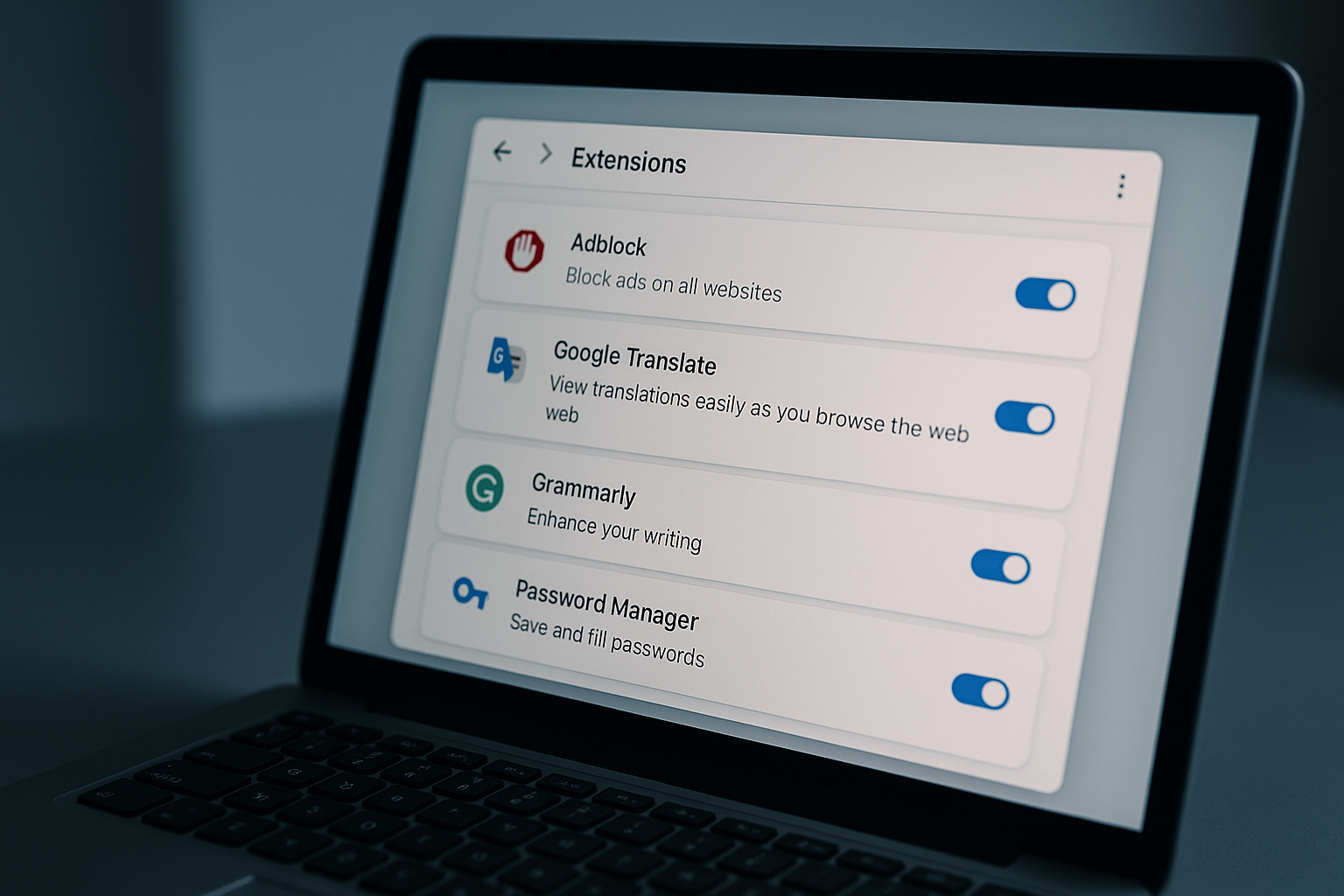
Not every extension is a threat. Some genuinely help you reduce tracking, clean up junk, or lock down your passwords. I keep these on pretty much every machine I use.
- uBlock Origin, Fast content blocker that cuts ads, trackers, and a lot of malware domains out of your traffic.
- Privacy Badger, From the EFF, watches for trackers and quietly blocks the worst offenders as you browse.
- Bitwarden, Open‑source password manager with a solid Chrome extension for auto‑filling logins without reusing passwords.
- ClearURLs, Strips useless tracking parameters from links, making your URLs cleaner and leaking less data.
- Click&Clean, One‑click way to clear cache, cookies, and local data when you are finished with a session.
If you want to read deeper on privacy threats outside the browser, the Electronic Frontier Foundation’s overview of digital privacy issues is a good reality check. It makes it clear that browser extensions are just one data leak out of many.
Here is how a few of the more privacy‑friendly options stack up at a glance:
| Extension | Price | Collects identifiable data? | Best for | Approx. store rating |
|---|---|---|---|---|
| uBlock Origin | Free | No | General ad & tracker blocking | 4.8 / 5 |
| Privacy Badger | Free | Minimal, non‑identifying | Tracker‑conscious users | 4.5 / 5 |
| Bitwarden | Free, $10/yr premium | Encrypted vault only | Password management | 4.7 / 5 |
| ClearURLs | Free | No | People sharing lots of links | 4.4 / 5 |
| Click&Clean | Free | Limited usage data | Quick browser cleanup | 4.6 / 5 |
If you are building a YouTube‑heavy workflow, by the way, stick to curated lists instead of installing the first thing that looks shiny. Our guide to the best YouTube-focused Chrome extensions filters out a lot of junk and focuses on tools that have been around for years, not weeks.
Common mistakes that get people owned by extensions
Every time I help someone clean up a compromised browser, I see the same patterns. It is not advanced hacking. It is impatience and wishful thinking.
Installing “free VPN” extensions instead of real VPN apps
Most free VPN Chrome extensions are either fake VPNs that only change your proxy for some sites, or data‑harvesting nightmares. If you need real privacy, use a proper VPN client on your machine and keep the browser extension footprint small.
Trusting anything that says “Coupons” or “Shopping Assistant”
These are notorious. Many are just affiliate link machines that rewrite your clicks and watch every store you visit. Some of the most widely abused malicious Chrome extensions in the last decade have hidden inside shopping helpers.
Grabbing pirated versions of premium tools
That “cracked” productivity extension on some random forum often comes bundled with bonus spyware. It is the same story as pirated Windows software, just easier to install. If you would not run a cracked EXE from a warez site, do not load a random CRX either.
Letting kids install whatever they want
Shared family machines are a mess. Kids add extensions for games, cheats, and streaming, and nobody checks them again. At minimum, make a separate Chrome profile for them and routinely clear anything they added that you do not understand.
Ignoring weird behavior in your browser
Sudden extra ads on sites that usually do not show them, new tabs opening by themselves, or your default search engine changing are all classic signs of a malicious or hijacking extension. If Chrome starts feeling “off”, assume an extension is involved until you prove otherwise.
If you build Chrome extensions, this is your responsibility too
Not every malicious Chrome extension starts malicious. Some begin as harmless side projects, then get sold to shady buyers who turn that install base into an ad or data harvesting network. Developers need to think about that from day one.
A few practical rules if you are on the dev side:
- Ask for the smallest set of permissions you can. If your extension only needs the current tab URL, do not request access to every page in every tab.
- Be explicit in your privacy policy. Say what you collect, how long you keep it, and who you share it with, in plain English.
- Keep analytics optional. Opt‑in is better than opt‑out, and you rarely need personally identifiable data.
- Sign your code, and do not share your Web Store publishing account with random collaborators.
- If you ever sell your extension, tell users clearly, and be ready for them to leave if the new owner’s practices look sketchy.
If you are learning the basics of Chrome extension development, start with simple, narrow‑scope tools. Something like our tutorial on grabbing the current tab URL inside a Chrome extension keeps your access surface small, which is better for users and easier to audit.
Google’s own documentation for Chrome extensions at developer.chrome.com has a full section on security and permission models. It is not thrilling reading, but if you ship code to thousands of browsers, you owe those people at least a weekend of doing it right.
Frequently Asked Questions
How do I quickly check if a Chrome extension is safe?
Look at its permissions, developer name, reviews, and website, then Google the extension’s name plus “malware” or “data breach” before installing.
Can malicious Chrome extensions steal my passwords?
Yes, if an extension has permission to read and change data on sites where you log in, it can capture what you type or alter the page to phish you.
Is it safer to use Chrome without any extensions?
It is safer in the strictest sense, but you lose useful blockers and tools. A small set of well‑known privacy and security extensions is usually a better balance.
Do removed Chrome extensions still have access to my data?
Once you remove an extension, it loses access going forward, but anything it already collected and sent to its servers is still out there.
How often should I audit my installed extensions?
For personal use, checking every three to six months is reasonable. In a business setting, a monthly audit or enforced policy is a lot safer.

Written by
David ChenAI Tools Researcher
David is an AI tools researcher who covers the latest in artificial intelligence, machine learning applications, and emerging AI technologies. He combines a technical understanding of AI systems with practical insights on how to use them effectively. His reviews help readers cut through the hype and find AI tools that deliver real value.
Keep reading
You might also like
 Chrome Extensions
Transform Your Viewing: The Ultimate Guide to the Best YouTube Chrome Extensions
Discover the best YouTube Chrome extensions to enhance your viewing experience! From playback improvements to UI customization and accessibility, this
 Chrome Extensions
Boost Your Productivity with the Amazing Chili Piper Chrome Extension
Discover how the Chili Piper Chrome Extension can transform your scheduling and productivity. Learn tips, integration methods, and user experiences to
 Chrome Extensions
Supercharge Your Opera GX Browser: The Ultimate Guide to Installing Chrome Extensions
Discover how to supercharge your Opera GX browser by installing Chrome extensions. Our ultimate guide covers benefits, installation steps, and top